POPSMART HELP
Set up product and cart offers.No Shopify Plus required.
Setup, pricing and answers for PopSmart AI Upsell & Bundles on Shopify.
Set up a product-page or cart offer
These placements require Shopify’s Online Store sales channel. You control when each campaign goes live.
-
Open the app and connect your storefront
Open PopSmart from Shopify Admin and follow onboarding. In the Shopify theme editor, turn on PopSmart Growth Embed and save the theme. Return to onboarding to check the connection. Conversion tracking is recommended and can be enabled now or later.
-
Check your products
Let the product sync finish, then check that the products and variants you want to offer are available in PopSmart.
-
Create and preview a draft
Choose a campaign type, select the products and offer, then choose product page or cart as the placement. Review any AI product suggestions, adjust the copy and styling, and inspect the shopper preview. Save the campaign as a draft.
-
Resolve readiness items and turn it on
Open the campaign detail, resolve any readiness items and select Turn on. Visit the selected storefront placement to check the offer. You can pause the campaign from PopSmart when you need to stop showing it.
Set up Shopify product-page and cart offers without Plus
Product-page and cart campaigns require the Online Store sales channel, not Shopify Plus. Checkout is a separate placement with a Plus requirement. Start by deciding where the shopper should see the offer.
Choose the placement first
Available campaign types depend on placement and Shopify eligibility. A product-page offer is useful while a shopper considers one item; a cart offer appears after products have been added.
| Placement | Requirement | What to verify |
|---|---|---|
| Product page | Online Store sales channel | Assigned product, variant, price and widget placement |
| Cart | Online Store sales channel | Cart or drawer compatibility and offer eligibility |
| Checkout | Shopify Plus | Checkout eligibility and supported offer type |
| Post-purchase | Shopify eligibility and approval | Actual delivery availability; do not assume it is enabled |
Build a draft and preview the offer
Enable PopSmart Growth Embed and let the product sync finish. Create a campaign, select the products and variants, then configure its price or discount and placement.
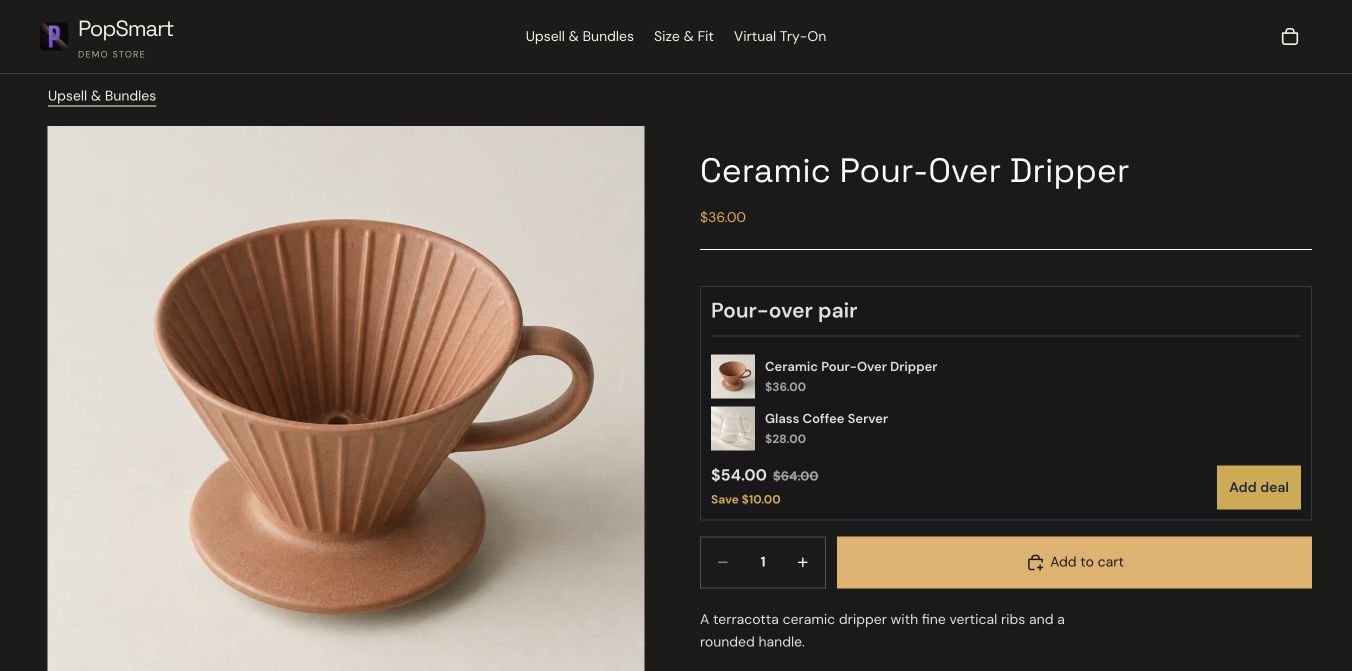
For a bundle like the demo, check the full set, each included item, the final set price and the shopper’s add action. Use your own product prices; the demo is an example, not a pricing template. Save the campaign as a draft.
Turn it on, then test the real shopping path
Open campaign detail and resolve the readiness items. Select Turn on only after reviewing the preview. Then open the matching product page or cart in your store.
Check desktop and mobile, change variants and quantities, and verify the actual cart line items and discounts. Previewing a campaign alone does not prove that the published store uses the same theme or placement. Pause the campaign if you need to correct it.
Read results without confusing revenue measures
Campaign reports distinguish impressions, clicks, add-to-cart actions, attributed orders and attributed revenue. Attributed revenue is not the same as your total store revenue or guaranteed incremental revenue.
Compare a defined period and placement before changing the offer. Eligible product-page upsell and cross-sell campaigns support copy and styling A/B tests; bundles and cart campaigns are outside that experiment eligibility.
Plans and billing
Every plan includes the same core campaign features and analytics. The price and monthly campaign-attributed revenue band change by plan.
| Plan | Price | Monthly campaign-attributed revenue |
|---|---|---|
| FREE | $0 | Up to $500 |
| STARTER | $9 / 30 days | Up to $2,000 |
| GROWTHRecommended | $29 / 30 days | Up to $10,000 |
| PRO | $79 / 30 days | Unlimited |
The first eligible paid subscription includes a 14-day trial. Shopify shows the final subscription terms before you approve a charge. Applicable taxes may be added.
These bands use revenue attributed to PopSmart campaigns, rather than your store’s total revenue. Campaigns continue serving if a band is exceeded, and an upgrade notice stays visible. Placement eligibility still applies.
Frequently asked questions
What does PopSmart do?
PopSmart helps Shopify merchants create product bundles, upsells, frequently bought together offers, volume discounts, BOGO and free gifts. Merchants choose their products, customize the offer and preview it before activation.
Where can PopSmart offers appear?
PopSmart supports product-page and cart offers. Supported checkout offers require Shopify Plus. Thank-you features include surveys and next-order discounts. Available campaign types depend on the selected placement and Shopify eligibility.
Do checkout offers require Shopify Plus?
Yes. PopSmart checkout offers require Shopify Plus. Product-page and cart campaigns do not require Shopify Plus, and they require the Online Store sales channel.
What does the AI suggest?
PopSmart provides product suggestions for merchants to review. You choose the products and decide which offers go live. AI suggestions do not guarantee sales or replace your review of the campaign.
Which campaigns support A/B testing?
Eligible product-page upsell and cross-sell campaigns support A/B tests of offer copy and styling. Bundle campaigns and cart campaigns are not included in that experiment eligibility.
How is plan eligibility measured?
PopSmart plans use monthly campaign-attributed revenue bands: FREE: Up to $500, STARTER: Up to $2,000, GROWTH: Up to $10,000, PRO: Unlimited. These bands refer to campaign-attributed revenue, not total store revenue. Shopify eligibility still applies to individual placements.
Need help with your campaign?
Email team@popsmart.ai with your store domain, campaign type and the step you need help with.
Build your first campaign in PopSmart.
Choose the offer. Preview the storefront. Turn it on when it is ready.