
POPSMART HELP
Create a Shopify size chart.Start with the file you have.
Setup, pricing and answers for PopSmart Size Chart Fit Finder on Shopify.
Put a size chart on your product page
Setup happens in the app and in Shopify’s theme editor, with no theme code to edit. A chart stays a draft until you choose where it applies.
-
Install and add the app block
Install from the Shopify App Store and open PopSmart in Shopify Admin. There is no separate login. Select Add to product page, place the PopSmart size guide block in the theme editor, for example below the product options, and save the theme.
-
Create a chart from a file you have
Open Create Chart and choose the chart category. Drop in a photo, PDF or spreadsheet, or paste a table. Photos and PDFs are read into an editable draft, with low-confidence cells flagged for you to check.
-
Style it and add the fit finder
Check the rows and units, then pick a preset and adjust colors, fonts and layout. Open Size Guide Trigger and turn on Include size recommendations. Name the chart and select Save chart.
-
Set where it applies and check the page
In Manage Charts, select Set where it applies. Pick products directly, or apply the chart automatically by condition, such as collection, tag or vendor, so matching products you add later get it too. Saving publishes the chart. Then open an assigned product page to check the size guide and Find my size.
Create a Shopify size chart from a PDF, image or Excel file
Use your supplier’s measurements as the starting point. Import them into an editable draft, check the units and values, then publish the chart for the right products.
Try the same sample chart
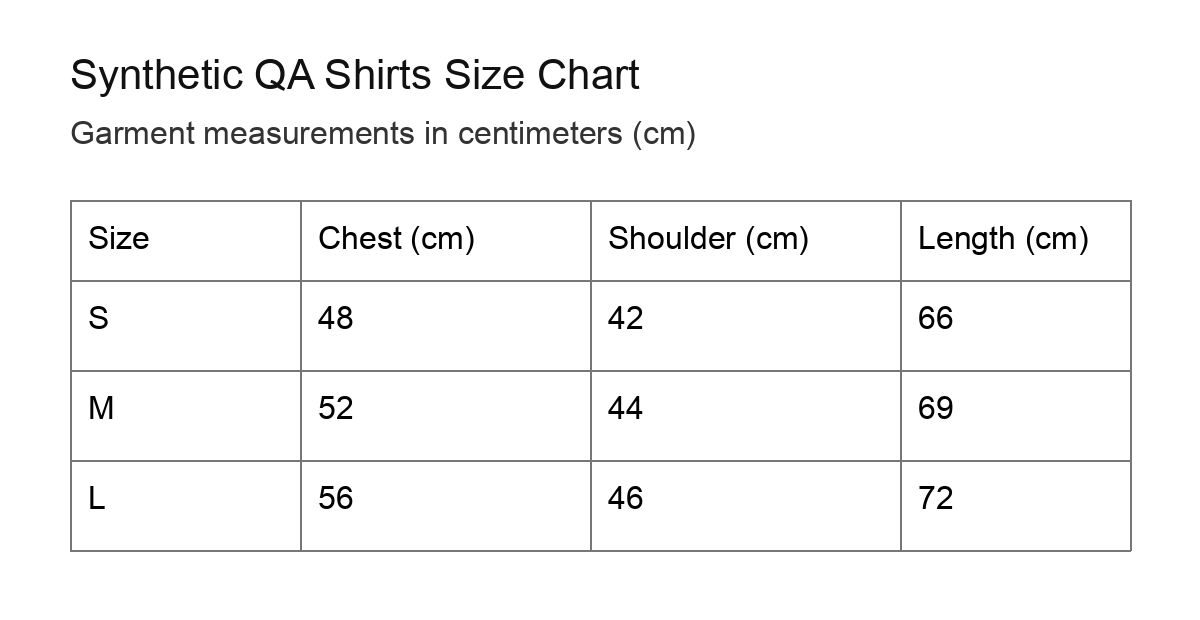
Each file contains the same three garment-size rows in centimetres. These are practice values, not a sizing standard for your products.
1. Prepare the measurements
Keep the size labels, column names and units visible in the same table. In a photo or PDF, include the whole table with readable text. In Excel, use one header row and one size per row.
Use the sample below to check the workflow. Replace every measurement with your own garment data before publishing.
| Size | Chest | Shoulder | Length |
|---|---|---|---|
| S | 48 | 42 | 66 |
| M | 52 | 44 | 69 |
| L | 56 | 46 | 72 |
2. Import and review the draft
In Size Charts, create a chart and choose the category that matches the product. Upload a PDF, image or spreadsheet, or paste the table. Review the extracted draft before continuing.
Compare every row with the source. Check that decimals are intact and that cm has not been mistaken for inches. Resolve any uncertain cells; an imported draft is not a guarantee that the source was read correctly.
3. Refine, save and assign
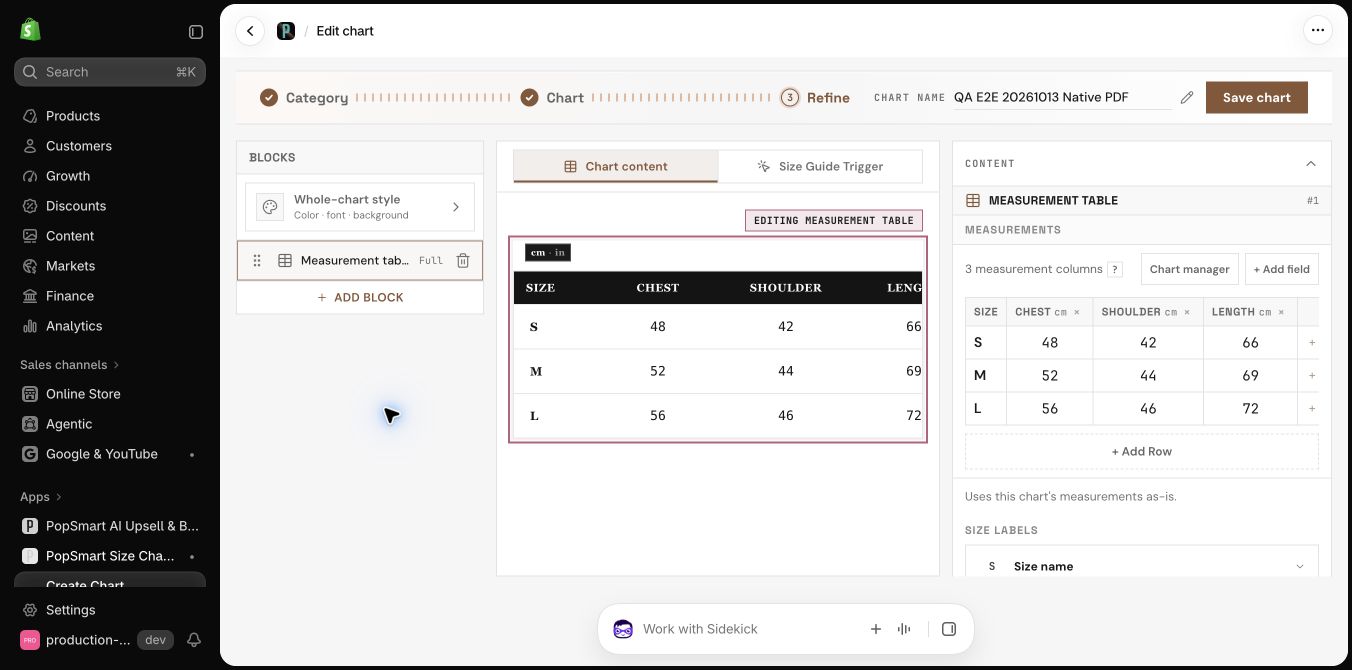
In Refine, choose the chart’s appearance and edit its measurement table. Save the draft, then publish and assign it to the intended products or collections from Size Charts.
Add or enable the size-guide placement using the app’s setup flow. Open a matching storefront product and check the trigger, chart rows, units and mobile layout. If the chart is missing, check publication, assignment and theme placement before importing again.
Keep chart data separate from fit guidance
The chart displays your garment measurements. The Fit Finder combines supported shopper inputs with product and sizing information to offer advisory guidance. Check the product category and measurement meaning before enabling recommendations.
If your supplier uses flat chest width, label it consistently. Do not silently treat a flat width as a body circumference. A visual try-on image also does not replace a size chart.
Plans and billing
Every plan includes the size chart widget, the fit finder, unit and international size conversion, 14 languages, and chart and recommendation insights. Paid plans raise the limits and add email support.
| Plan | Price | What’s included |
|---|---|---|
| Free | $0/mo | 3 published size charts · 100 fit recommendations a month · 5 smart imports a month |
| Starter | $9/mo · $86.40/yr | Unlimited published size charts · 500 fit recommendations a month · 50 smart imports a month |
| Growth | $19/mo · $182.40/yr | Unlimited published size charts · 7,500 fit recommendations a month · 300 smart imports a month |
| Pro | $39/mo · $374.40/yr | Unlimited fit recommendations · Unlimited published size charts · 1,000 smart imports a month |
The first eligible paid subscription includes a 14-day trial. Plan changes during that trial carry only the remaining days.
At the monthly fit recommendation limit, the widget keeps serving for a three-day grace period, then pauses until the monthly reset shown in Billing or until you upgrade. There are no overage fees, and nothing you have published is deleted.
Smart imports count photo and PDF reads. If they run out, you can still paste or edit a table until the next monthly reset.
Shopify shows the final subscription terms, including any applicable taxes, before you approve a charge.
Frequently asked questions
Which files can I turn into a size chart?
Photos (PNG, JPG or WEBP), PDFs, spreadsheets (XLSX, XLS, CSV or TSV), HTML tables and plain text, up to 20MB per file. You can also paste a table straight in. PopSmart builds an editable draft and flags low-confidence cells from photos and PDFs. You can edit any row or column, and you review the draft before you publish it.
How does the fit finder recommend a size?
The shopper answers a few questions, such as height, weight, gender and an optional fit preference. Depending on the product, it may also ask for usual size or foot length. PopSmart compares the answers with your chart and the product’s sizing and fit information, then shows the recommended size with the reason behind it. Recommendations are advisory estimates and do not guarantee fit. Where a category isn’t supported yet, the widget shows only the size chart.
What happens when I reach my monthly limit?
You’re warned before you reach it. At the fit recommendation limit, the widget keeps serving for a three-day grace period, then pauses until the monthly reset or until you upgrade. There are no overage fees, and nothing you have published is deleted.
Does it convert units and sizes, and which languages does it support?
Yes. Charts can show cm or inches, and a Size conversion block adds US, UK, EU, JP and KR size references on every plan. The storefront widget is available in 14 languages: English, Korean, Japanese, Chinese, Spanish, French, German, Arabic, Hindi, Italian, Portuguese, Russian, Thai and Vietnamese. Set its default language in Settings.
Do I need a developer or theme code edits?
No. Select Add to product page in the app, place the PopSmart block in Shopify’s theme editor and save. You don’t edit theme code, and no separate display setting is needed. It is built for Online Store 2.0 themes. The exact position depends on your theme, so check an assigned product page after you publish.
What shopper data does the fit finder use?
Only what the shopper chooses to enter, such as height, weight, sizing category or gender, usual size and fit preference. Answering is optional, and a shopper who skips it can still view your size chart and buy. A logged-in shopper can choose Remember my measurements to save a profile for your store and can turn it off at any time. Full details are in the Privacy Policy.
Can I change plans or switch to annual billing?
Yes. Choose a plan and billing cycle on the Billing page, then approve it in Shopify. Most changes apply right away. Moving from an annual plan to monthly or to a lower annual plan takes effect when the current billing period ends. Switching to Free takes effect immediately and stops future renewals, and charts you have already published stay live.
Does it work with Shopify Flow and Sidekick?
Yes. In Shopify Flow, the Assign size chart to product action applies a published chart to a product in a workflow you create and activate. Sidekick can answer read-only questions about your setup, recent chart status and recommendation performance.
Need help with a chart?
Email team@popsmart.ai with your store domain, the chart or product you’re working on and the step you need help with. You can also open Support inside the app.
The size question is already on your page. Answer it.
Free plan, no code, and a 14-day trial on the first eligible paid subscription. Install from the Shopify App Store.