POPSMART HELP
Choose Photo or Live Try-On.Set it up on Shopify.
Setup, pricing and answers for PopSmart AI Virtual Try On on Shopify.
Set up Try-On on your product pages
Try-On runs as a Shopify theme app embed, so you don’t edit theme code. You choose the mode, where the button appears and which products show it.
-
Turn on the app embed
Open PopSmart AI Virtual Try On from Shopify Admin and select Open Theme Editor. Under App embeds, turn on Virtual Try-On and save the theme. Return to the app, which detects the change automatically.
-
Choose Photo or Live Try-On
Open Fitting in the app and check that Enable Try-On Extension is on. Photo Try-On is the default: shoppers upload a photo or choose an AI model. Live Try-On is available on Starter, Growth or Pro and is enabled per store on request at team@popsmart.ai. Once it’s enabled, you can turn on Realtime try-on, which replaces photo upload with the live camera.
-
Choose where Try-On appears
Show the button on all product pages, or only on selected product types or pages. Place it above or below your purchase buttons and match its text, icon and colors to your theme. You can also limit Try-On to logged-in customers or cap how many try-ons each shopper can start.
-
Save and check a product page
Save your settings, then use View on storefront to open a product page and try it. The result keeps the selected product, quantity and add-to-cart action directly below it.
Photo Try-On or Live Try-On: choose the flow for your Shopify store
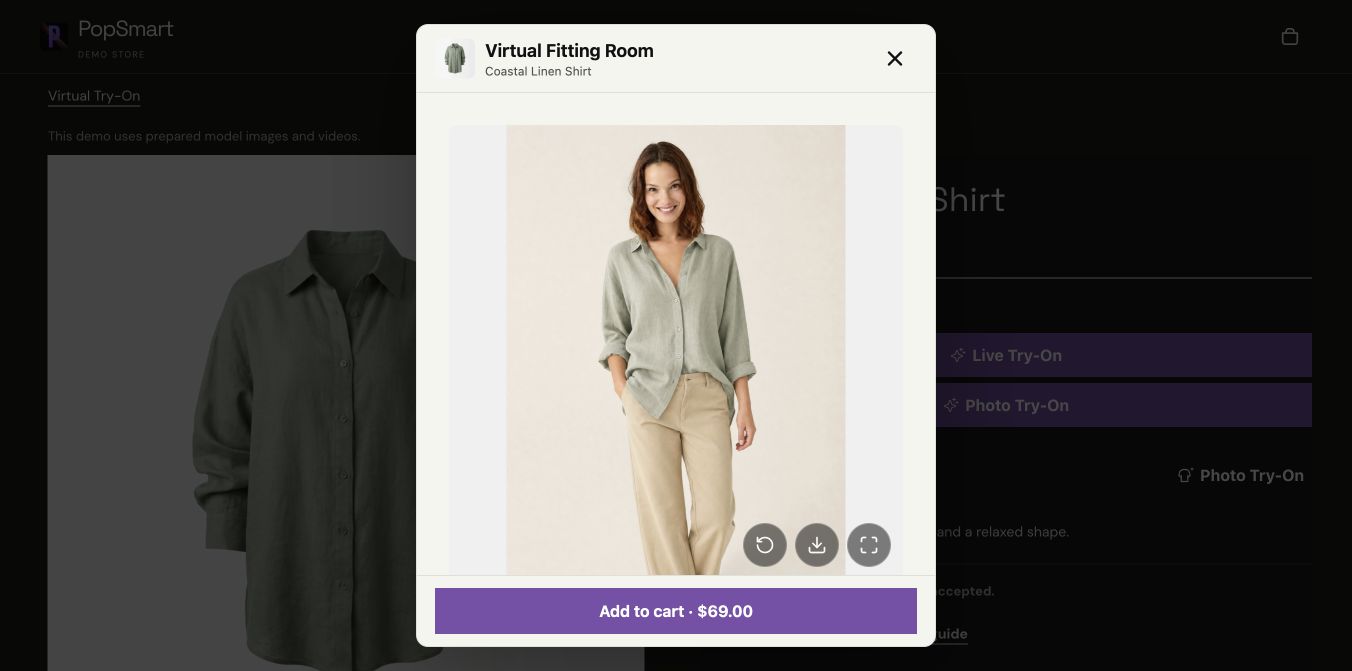
Photo produces a still image. Live uses the shopper’s camera in real time. They use the same credit balance, but their input, availability and credit usage differ.
Compare the two modes
Your storefront uses one mode at a time. The demo exposes both so you can compare the interfaces.
| Detail | Photo | Live |
|---|---|---|
| Shopper input | A photo or a chosen model | Camera |
| Result | A finished still image | Real-time preview |
| Plans | Free, Starter, Growth, Pro | Starter, Growth, Pro; store activation required |
| Usage | 10 credits per result | 10 credits per active second |
| Setup | Photo is the default mode | Request activation, then enable Realtime try-on |
Set a credit budget before enabling Live
A 10-second Live session uses 100 credits. Ten Photo results also use 100 credits. A full 20-second Live session uses 200 credits. These examples exclude any AI images you create elsewhere in the app.
Set the maximum Live duration in Fitting, up to 20 seconds. A session starts only when the balance can cover that configured maximum. Buying a credit pack increases the balance but does not unlock Live on Free.
Enable the storefront flow
Enable and save the Virtual Try-On app embed in Shopify’s theme editor. In the app’s Fitting settings, choose your products and button placement, then save and check a product page.
Photo is available on every plan. For Live on a paid plan, request store activation at team@popsmart.ai. After activation, turning on Realtime try-on replaces photo upload with the camera flow.
Explain the preview to shoppers
Try-on is a visual preview, not a body measurement or a guarantee of fit. Keep your size guide available and review generated product imagery before publishing it.
Uploaded Photo Try-On images are stored privately and deleted automatically within 24 hours. Live camera video is processed live and is not stored. See the Privacy Policy for the full terms and retain the consent controls in the widget.
Plans and credits
Every plan includes a monthly credit allowance. Shopper try-ons and the AI image tools in the app use the same balance. Photo Try-On is included on every plan; Live Try-On is available on Starter, Growth or Pro once it’s enabled for your store.
| Plan | Price | Monthly credits |
|---|---|---|
| Free | $0 / mo | 100 credits / month |
| Starter | $19.99 / mo | 1,500 credits / month |
| Growth★ Most Popular | $49.99 / mo | 4,500 credits / month |
| Pro | $99.99 / mo | 10,000 credits / month |
Paid plans don’t include a free trial. Start on the Free plan: 100 credits each month, with Photo Try-On.
Photo Try-On uses 10 credits per result. Live Try-On uses 10 credits per active second, up to the maximum duration you set (20 seconds at most). AI images you create in the app use 15, 25 or 40 credits at 1K, 2K or 4K. Background removal uses no credits.
Monthly credits reset every 30 days and don’t roll over. They’re used before pack credits.
Annual billing saves 20% and is charged once a year. Credits are still added every 30 days.
Shopify shows the final charge for your approval before you’re billed. Applicable taxes may be added.
Credit packs
| Credits | Price | Approximate images at 1K |
|---|---|---|
| 1,000 credits | $9.99 | ~66 images at 1K |
| 3,000 credits | $29.99 | ~200 images at 1K |
| 8,000 credits+ 800 bonus (10%) | $79.99 | ~585 images at 1K (incl. bonus) |
| 15,000 credits+ 2,250 bonus (15%) | $149.99 | ~1,150 images at 1K (incl. bonus) |
| 25,000 credits+ 5,000 bonus (20%) | $249.99 | ~2,000 images at 1K (incl. bonus) |
Image estimates assume AI images at 1K (15 credits each). Packs are one-time purchases available on any plan. Pack credits never expire and stay on your account if you cancel your subscription. Buying a pack doesn’t unlock Live Try-On.
Frequently asked questions
What’s the difference between Photo Try-On and Live Try-On?
Photo Try-On creates a finished image from a shopper’s photo or an AI model and is included on every plan, including Free. Live Try-On shows the garment on the shopper through their camera in real time. It’s available on Starter, Growth or Pro and is enabled per store on request: email team@popsmart.ai. Your storefront uses one mode at a time: turning on Live replaces photo upload.
Is there a free trial?
No. Paid plans don’t include a free trial. Instead, the Free plan gives you 100 credits each month and Photo Try-On, so you can test it on your store. Upgrade or buy a credit pack when you need more.
How are credits used?
All features share one credit balance. A Photo Try-On result uses 10 credits, Live Try-On uses 10 credits per active second, and AI images you create in the app use 15, 25 or 40 credits at 1K, 2K or 4K. For example, 1,500 credits cover 150 Photo Try-On results, or a mix such as 100 results, 30 seconds of Live Try-On and 10 AI images at 1K. If a generation fails because of a service error, its credits are returned.
What happens when I run out of credits?
When your balance can’t cover another Photo Try-On, the Try-On button is hidden on your storefront until you add credits. A Live Try-On session starts only when your balance covers the maximum duration you set. Monthly credits return at your next 30-day reset, or you can buy a credit pack or upgrade at any time.
Do unused credits roll over?
Monthly credits don’t roll over; they reset at the start of each 30-day period. Credit pack credits are different: they never expire, carry across billing periods and stay on your account if you cancel your subscription. Monthly credits are always used first.
How do billing and cancellation work?
Monthly plans renew every 30 days. Annual plans save 20%, are charged once a year and still add credits every 30 days. Shopify processes every charge. To stop a paid plan, switch to Free on the Billing page or uninstall the app; both cancel the Shopify subscription.
Do I need to edit my theme code?
No. Try-On runs through the Virtual Try-On app embed, which you turn on and save in the Shopify theme editor. Until the embed is on, your Try-On settings don’t appear on the storefront.
What happens to shopper photos?
Photos uploaded for Photo Try-On are stored privately, have EXIF and GPS data removed and are deleted automatically within 24 hours. They aren’t used to train AI models. Live Try-On camera video is processed live and isn’t stored. See the Privacy Policy for details.
Need help with Try-On?
Email team@popsmart.ai with your store domain, whether you use Photo or Live Try-On, and the step you need help with.